


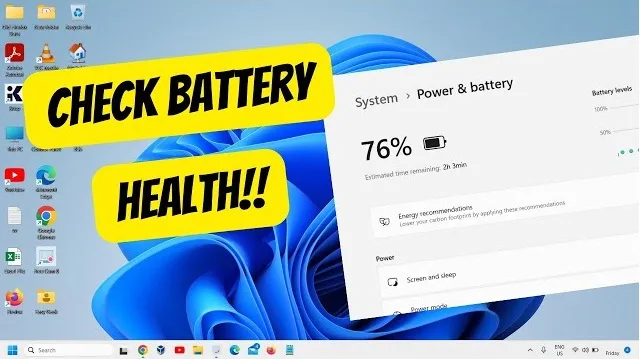
A laptop that no longer lasts as long away from the charger may have a worn battery, but battery age is not the only possible cause. Background applications, high screen brightness, poor signal strength, demanding workloads, and heat can all shorten a session. Windows 11 includes a built-in battery report that helps users compare a battery’s original design capacity with its estimated current full-charge capacity.
Microsoft’s Windows battery guidance explains how to generate the report and how lithium-ion batteries age. The report is a diagnostic aid, not a medical-style verdict: readings are estimates, and they should be interpreted alongside actual battery life, device age, and the laptop manufacturer’s support guidance.
Generate a battery report in Windows 11.
- Connect the laptop to power if the battery is very low, then save your work.
- Open Start and type Command Prompt.
- Right-click Command Prompt and choose Run as administrator, then approve the prompt if Windows asks.
- Type
powercfg /batteryreportand press Enter. - Windows will display the location where it saved an HTML report. Open File Explorer, navigate to that folder, and open the report in a browser.
The command is built into Windows; a third-party “battery health” app is not required for this first check. If the command fails, confirm that you are using a supported Windows installation and that the Command Prompt was opened with the required permissions. On some devices, manufacturer utilities may provide additional battery information.
Also read: Apple iPad Mini India Price Starts at ₹82,900 for OLED Model
Understand the important figures
The report includes sections such as Installed battery, recent usage, and battery usage. Two values are particularly useful:
- Design capacity: the amount of energy the battery was designed to hold when new, expressed in milliwatt-hours or another unit shown by the report.
- Full-charge capacity: Windows’ current estimate of how much energy the battery can hold when fully charged.
A rough capacity-retention calculation is full-charge capacity divided by design capacity, multiplied by 100. If a battery was designed for 50,000 mWh and the report estimates a full-charge capacity of 40,000 mWh, the estimated retention is 80%. That is an illustrative calculation, not a universal pass/fail threshold. Battery chemistry, age, calibration, temperature, and the laptop model affect the result.
Check the battery’s name, manufacturer, design capacity, and recent usage entries before drawing a conclusion. If the report shows implausible figures, missing values, or a sudden change, restart the laptop and generate another report. A single estimate may not explain why the computer is draining quickly.
Use the report to investigate short battery life.
Look at recent usage to see when the laptop was active, suspended, or connected to power. Battery usage can help show periods when charge fell quickly. Compare the timestamps with your normal routine: video calls, games, large downloads, browser tabs, external displays, and development tools can use more power than light document editing.
Battery wear is only one explanation for a short session. A laptop may drain quickly because an application is using the CPU continuously, a peripheral is drawing power, a wireless connection is weak, or the screen is set very bright. Check Task Manager for applications using unusually high CPU or GPU resources and close software that is not needed.
Compare similar conditions. A report from a day spent gaming or rendering video cannot be compared directly with a day of reading documents. If possible, test the laptop at a consistent brightness and with a similar workload after a restart. That makes it easier to separate a capacity problem from a software or usage change.
Battery health is not the same as battery runtime.
Capacity describes how much energy the battery may store; runtime describes how quickly the laptop uses it. Two laptops with similar capacity can have very different runtimes because of display size, processor, graphics load, software, network activity, and power settings. A battery can also retain a reasonable amount of capacity while a background process drains it faster than expected.
For this reason, do not decide to replace a battery based on a single percentage alone. Consider the age of the laptop, the runtime you actually get, whether the device shuts down unexpectedly, and whether the manufacturer’s diagnostics identify a fault. If the laptop is under warranty, check the warranty terms before paying for a replacement.
Settings that can extend a normal work session
Windows 11’s energy and battery settings can reduce unnecessary consumption. Turn on Energy Saver or the equivalent battery-saving option when you need longer runtime. Lower screen brightness to a comfortable level, reduce keyboard backlighting if available, and disconnect external accessories that are not in use.
Review startup and background applications. Cloud syncing, large downloads, browser extensions, and conferencing software can continue using power even when you are not actively working. Install Windows updates and manufacturer driver updates from official sources, because power-management fixes can sometimes address abnormal drain. Avoid downloading unofficial driver packages from pop-up sites.
Wireless connections also affect power use. If a laptop is constantly searching for a weak Wi-Fi network or mobile hotspot, its energy use may rise. Where practical, move closer to the router or use a stable connection. Close unused browser tabs and applications that keep the processor active.
How to reduce battery aging
Microsoft recommends avoiding frequent deep discharges and, when practical, keeping a lithium-ion battery within a moderate charge range of roughly 20% to 80%. The best approach depends on the laptop’s charging features and how it is used; some models offer smart charging or a battery conservation mode that limits the maximum charge while the computer stays plugged in.
Also read: Apple Launches M6 MacBook Pro and iMac; India Pre-orders start Oct 28.
Heat is an important factor. Do not block the laptop’s vents; use it on soft bedding that traps heat, or leave it in a hot car. Heavy workloads may make the device warm, but persistent unusual heat deserves investigation. Use the manufacturer’s recommended charger and avoid damaged cables or adapters.
If the laptop will be stored for an extended period, Microsoft advises keeping it in a cool, dry place and storing it at a partial charge rather than completely full or empty. Check the manufacturer’s instructions for the exact model. Battery management features vary, and a setting available on one laptop may not exist on another.
When to stop using the laptop and seek service
A battery that has visibly swollen, lifted the touchpad or keyboard, separated the case, or developed an unusual smell should be treated as a safety issue. Microsoft says to stop using a device if a deteriorated battery has expanded beyond the device’s enclosure. Do not press, puncture, bend, or attempt to remove a swollen battery yourself. Power the device down if it is safe to do so and contact the manufacturer or a qualified repair provider for instructions.
Seek service if the laptop shuts down unexpectedly despite a reported charge, will not charge normally, shows battery errors or has a major drop in runtime that cannot be explained by workload. If a replacement is needed, use an approved part and qualified service. An inexpensive battery from an unknown seller may not meet the original device’s safety or compatibility requirements.
A practical check-up routine
- Generate a battery report and save it with the date so you can compare later reports.
- Record design capacity, full-charge capacity, and the typical runtime for a consistent task.
- Check Task Manager and Windows battery settings for abnormal background use.
- Install updates from Windows Update and the laptop manufacturer’s official support page.
- Enable smart charging or a conservation mode if the laptop provides one and it suits your routine.
- Arrange professional service if the battery is swollen, the device shuts down unexpectedly or capacity loss is severe.
The most useful result is not a single “health score” but a clearer picture of how much capacity remains and how the laptop uses it. A battery report, consistent runtime test, and safe charging habits can help users decide whether a settings change, software fix, or replacement is warranted.
Sources: Microsoft Support, “Caring for your battery in Windows,” including the Windows 11 battery-report instructions and lithium-ion battery guidance.
How do I check laptop battery health in Windows 11?
Open Command Prompt as administrator, run powercfg /batteryreport, then open the HTML file at the location shown by Windows. Compare design capacity with full-charge capacity and review recent usage.
Does low full-charge capacity always mean the battery must be replaced?
No. The report is an estimate. Consider actual runtime, device age, shutdowns, manufacturer diagnostics, and warranty terms before deciding whether service is needed.
What should I do if a laptop battery is swollen?
Stop using the device, and do not press, puncture, or remove the battery yourself. Contact the laptop manufacturer or a qualified repair provider for safe handling instructions.




Comments (0)
Be the first to comment. Comments are published after moderation.